
Clients
The Clients module is your central directory of every company you do business with. Beyond just contact info, each client's page ties together all their projects and quotes in one place — giving you a full history at a glance.
Viewing Your Clients
Click All Clients in the left sidebar to see the full list. Each client shows a quick summary: number of projects, how many are active, and two dollar figures — total quoted value and approved/won value.
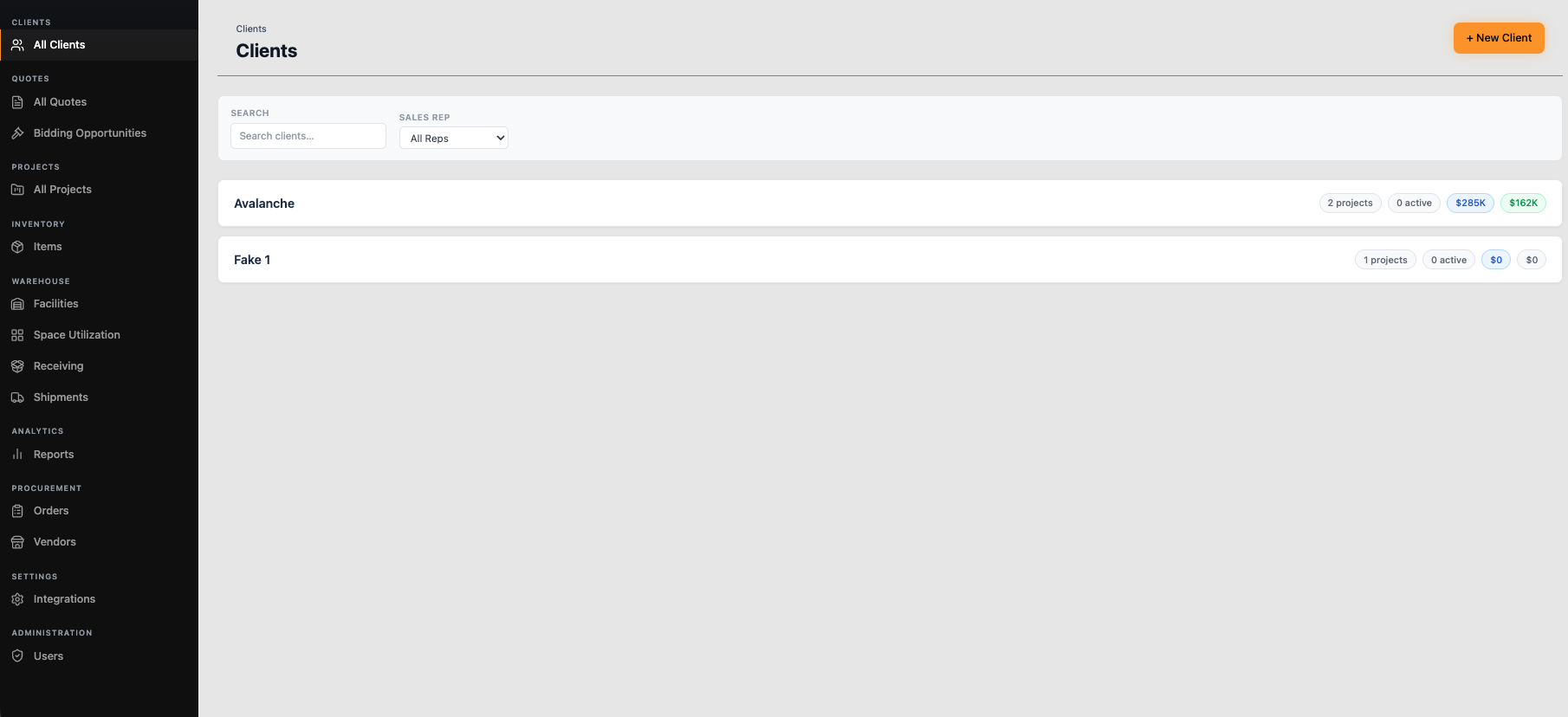
Use the Search bar or the Sales Rep filter to quickly find a specific client, especially useful once your list grows.
Adding a New Client
Click + New Client to open the form. Fill in the Company Name (required), Primary Contact, Contact Email, Contact Phone, and any Notes, then click Create Client.
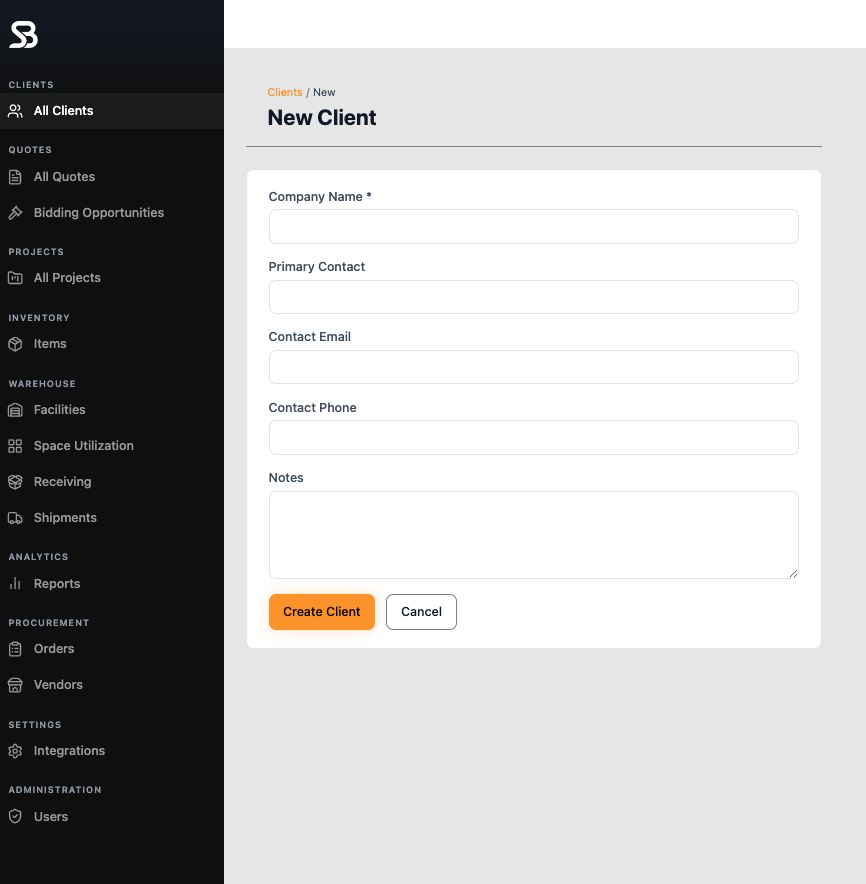
💡 Tip: You'll rarely need to create a client from here directly — most of the time, you'll create one on the fly while setting up a new Project or Quote (see the Project Management and Quotes articles). This page is mainly for browsing, editing, or reviewing clients you already work with.
Viewing a Client's Details
Click on any client from the list to open their detail page. At the top, you'll see their Primary Contact, Contact Email, Contact Phone, and assigned Sales Rep, with Edit Client and Delete buttons available.
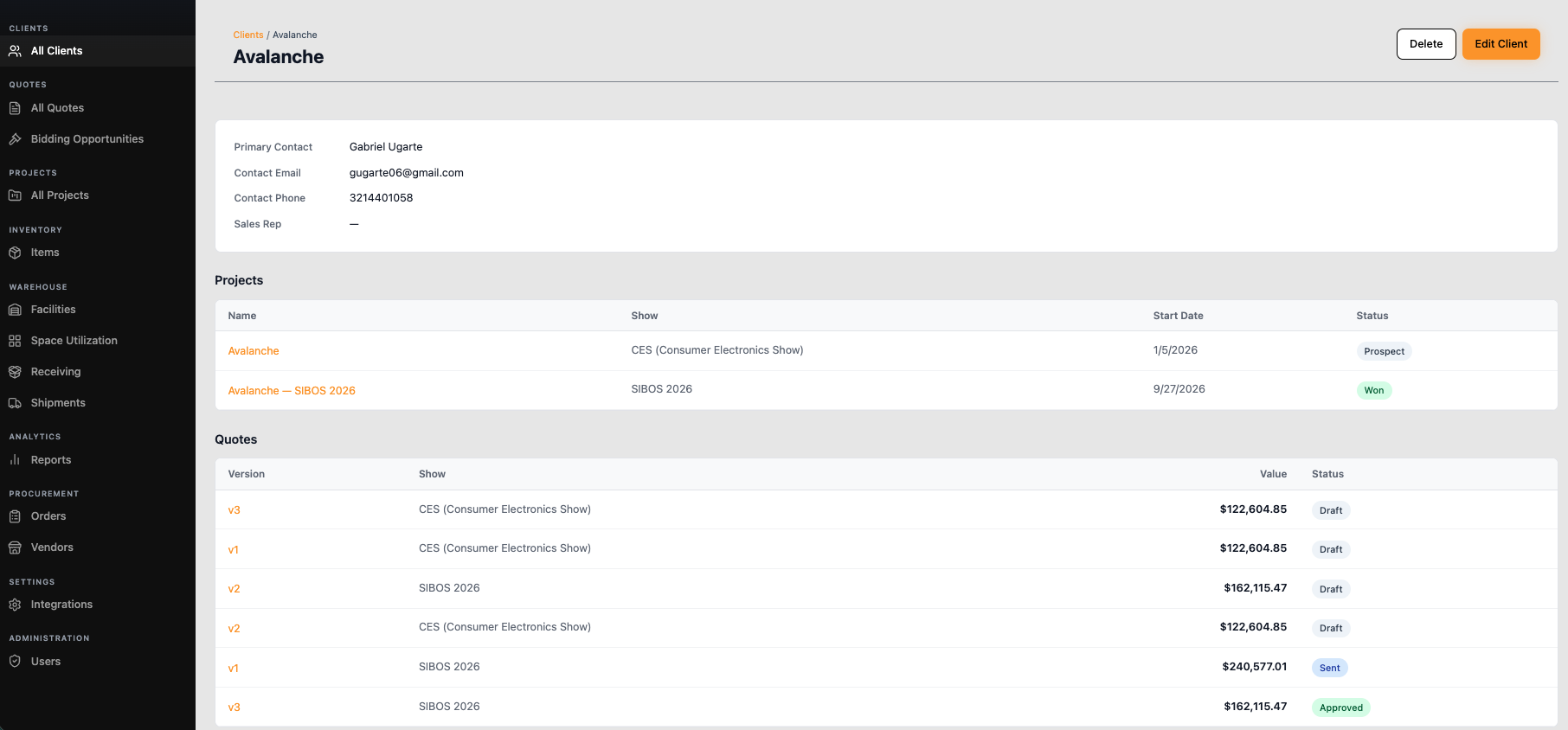
Below that, two tables give you the client's full history:
- Projects — every project linked to this client, with Show, Start Date, and Status (e.g., Prospect, Won)
- Quotes — every quote ever created for this client, across all shows and versions, with Value and Status (Draft, Sent, Approved)
Click any project or quote name to jump directly into its full detail view.
💡 Tip: The Quotes table is a great way to see a client's full negotiation history — for example, comparing v1 ($240,577.01, Sent) against v3 ($162,115.47, Approved) shows exactly how the deal evolved before it closed.
⚠️ Note: Deleting a client here does not delete their associated Projects or Quotes — those records remain in the system. Use Delete carefully, and only for clients created by mistake or duplicates.