
Quotes
The Quotes module is where your sales and estimating team builds and sends client proposals. You can build a quote the traditional way, line item by line item, or use AI to generate one automatically from booth renderings — a tool designed to speed up estimating, not replace the estimator.
Viewing Quotes
Click All Quotes in the left sidebar to see every quote your team has created. Each one shows the Client, Show Name, version, creation date, total, and Status (e.g., Draft).
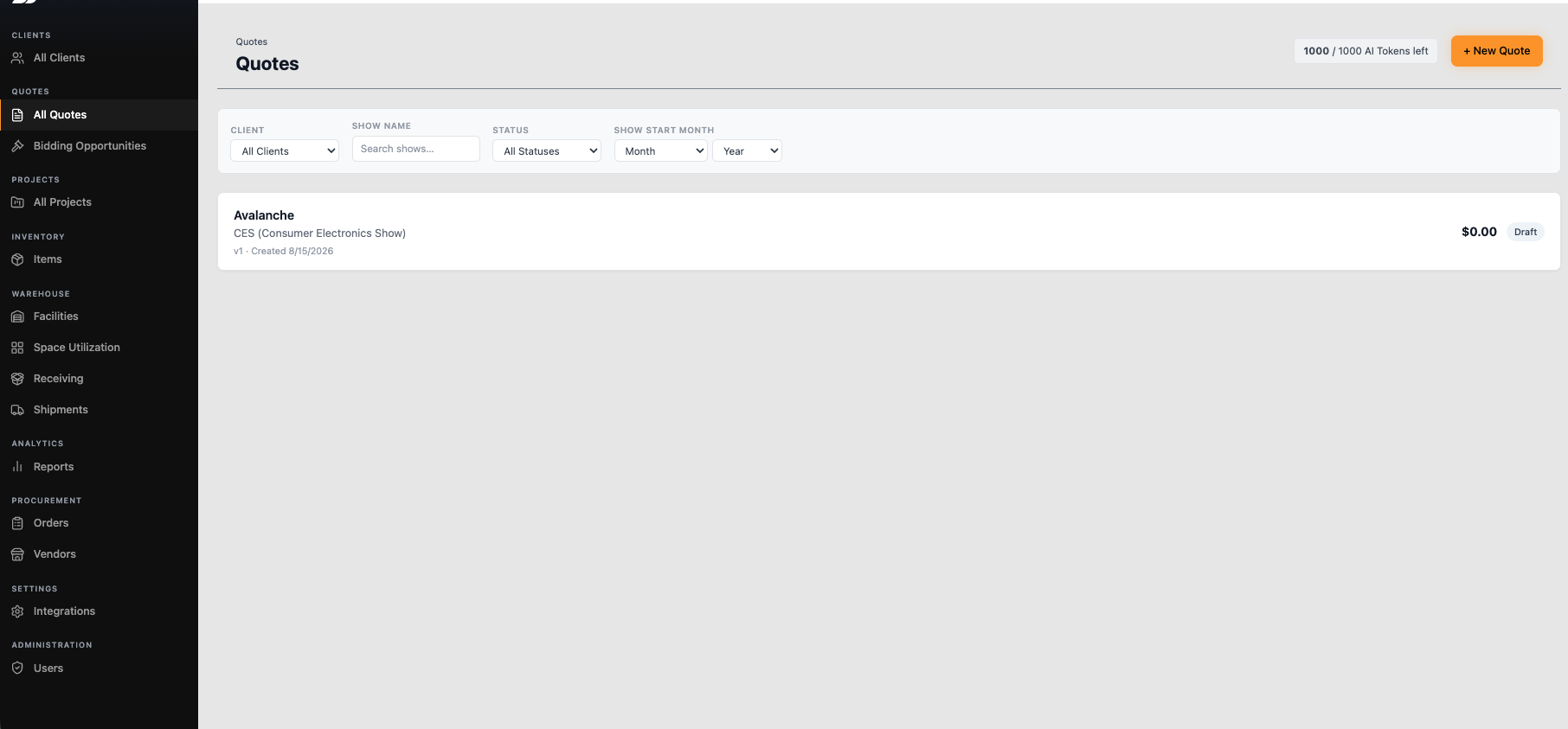
Use the filters at the top — Client, Show Name, Status, Show Start Month — to quickly find a specific quote.
At the top right, you'll also see your AI Tokens balance (e.g., "1000 / 1000 AI Tokens left") — this tracks usage for the AI-generated quotes covered below.
Creating a New Quote
Click + New Quote to start. ShowBase gives you two ways to build it: Add Line Items Manually or Generate from Renderings (AI).
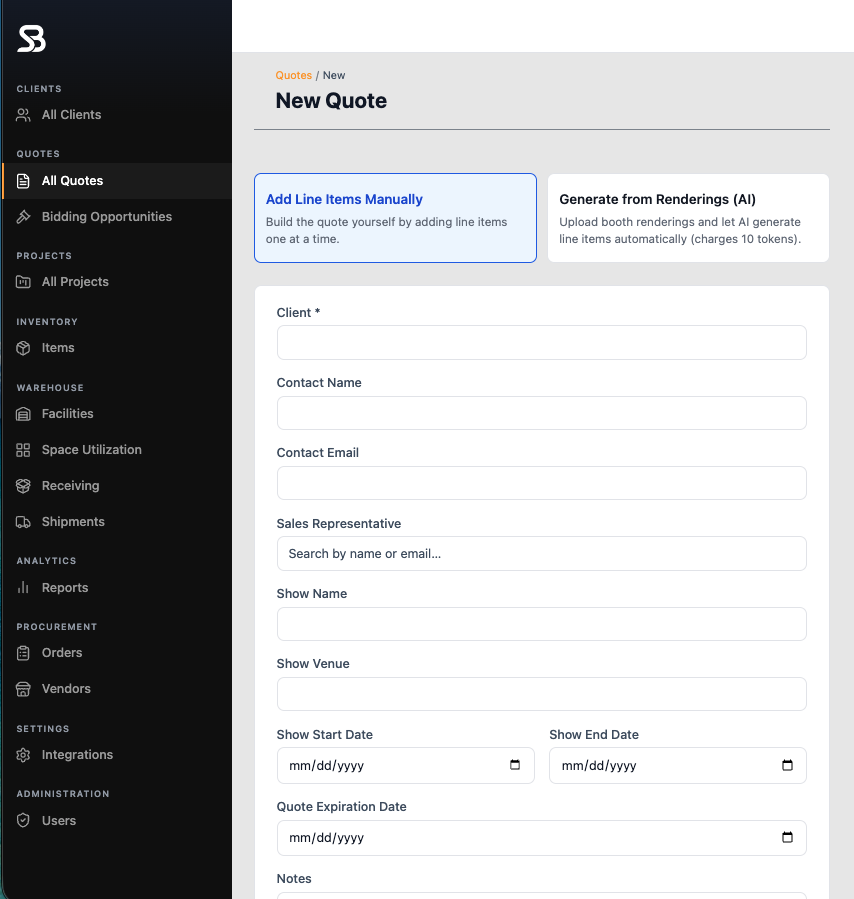
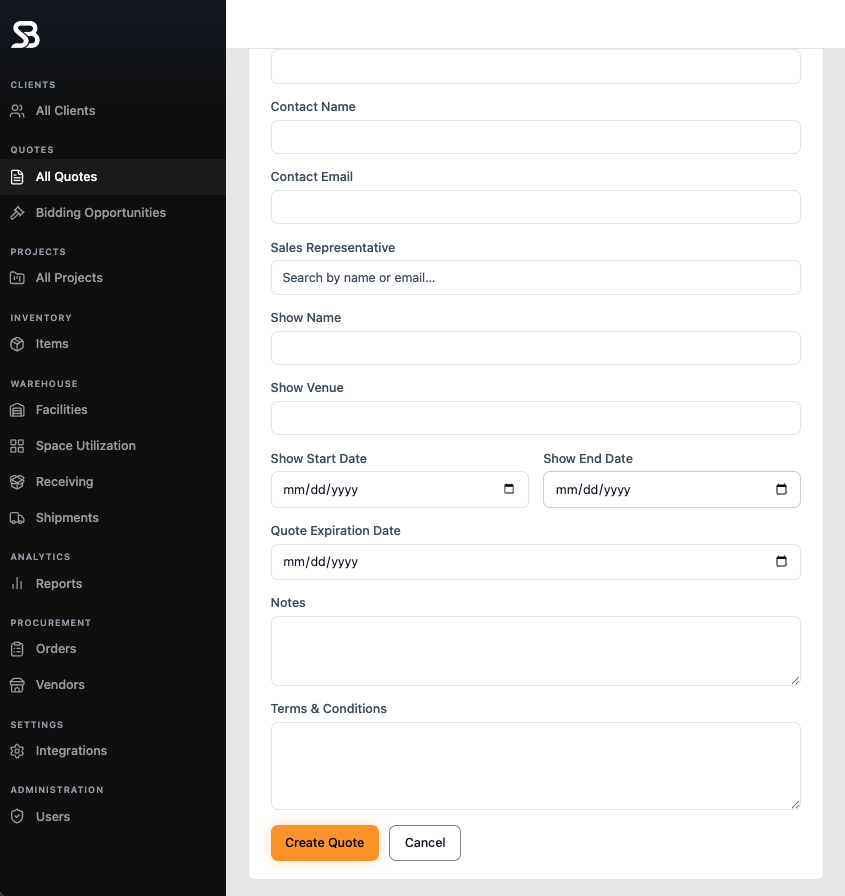
Regardless of which method you choose, start by filling in the basics: Client, Contact Name, Contact Email, Sales Representative, Show Name, Show Venue, Show Start/End Date, and Quote Expiration Date.
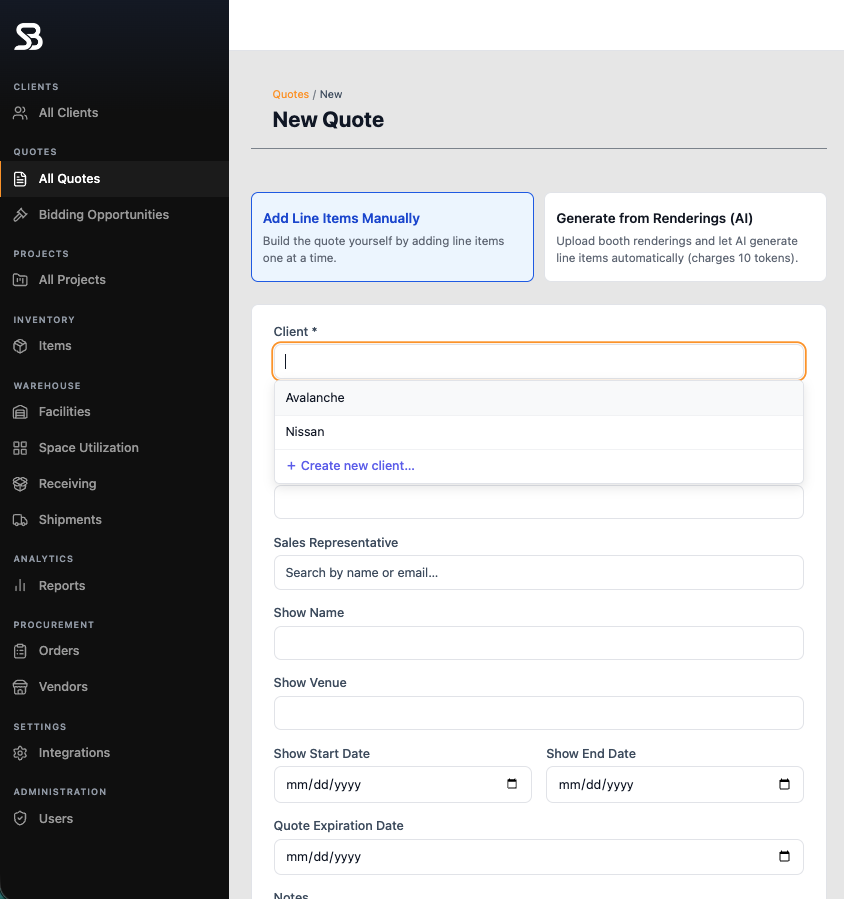
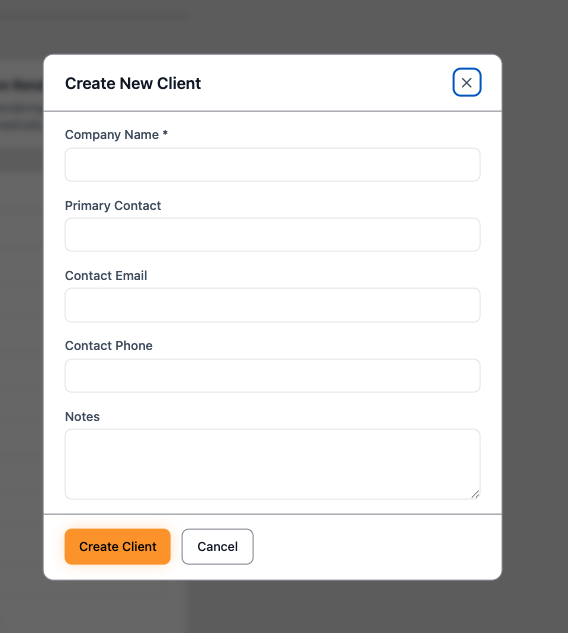
As with projects, if the client doesn't exist yet, click + Create new client... from the Client dropdown to add them on the spot.
Option A: Add Line Items Manually
Fill in Notes and Terms & Conditions if needed, then click Create Quote. You'll build out the actual pricing afterward, item by item, from the quote detail screen.
Option B: Generate from Renderings (AI)
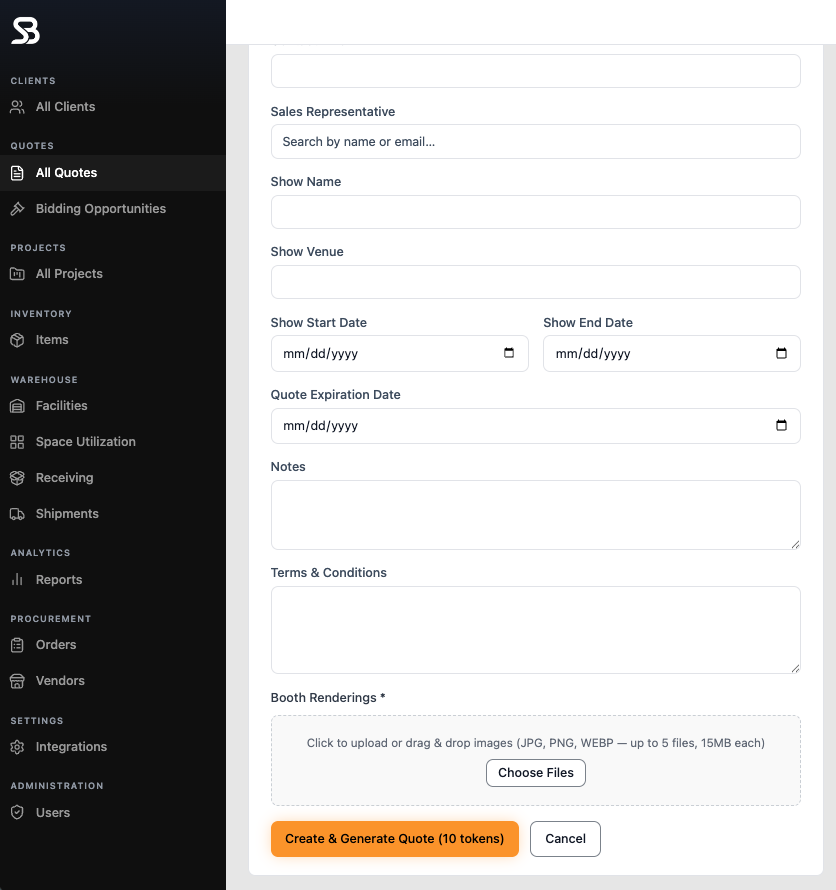
Fill in the same Notes and Terms & Conditions, then upload your Booth Renderings (JPG, PNG, or WEBP — up to 5 files, 15MB each). Click Create & Generate Quote — this uses 10 AI tokens and automatically builds a draft set of line items based on what's in the renderings.
📌 Important — AI is an assistant, not a replacement
The AI rendering feature exists to speed up the estimating process, not to replace the estimator's judgment. Every AI-generated quote must be reviewed by the estimator before it's sent to a client — checking quantities, pricing, and any items the AI may have missed or misread.
This review step matters for another reason too: the more estimators check and correct AI-generated quotes, the more accurate the tool becomes over time. Skipping the review doesn't just risk sending a wrong quote to a client — it also means the AI doesn't improve.
Managing a Quote
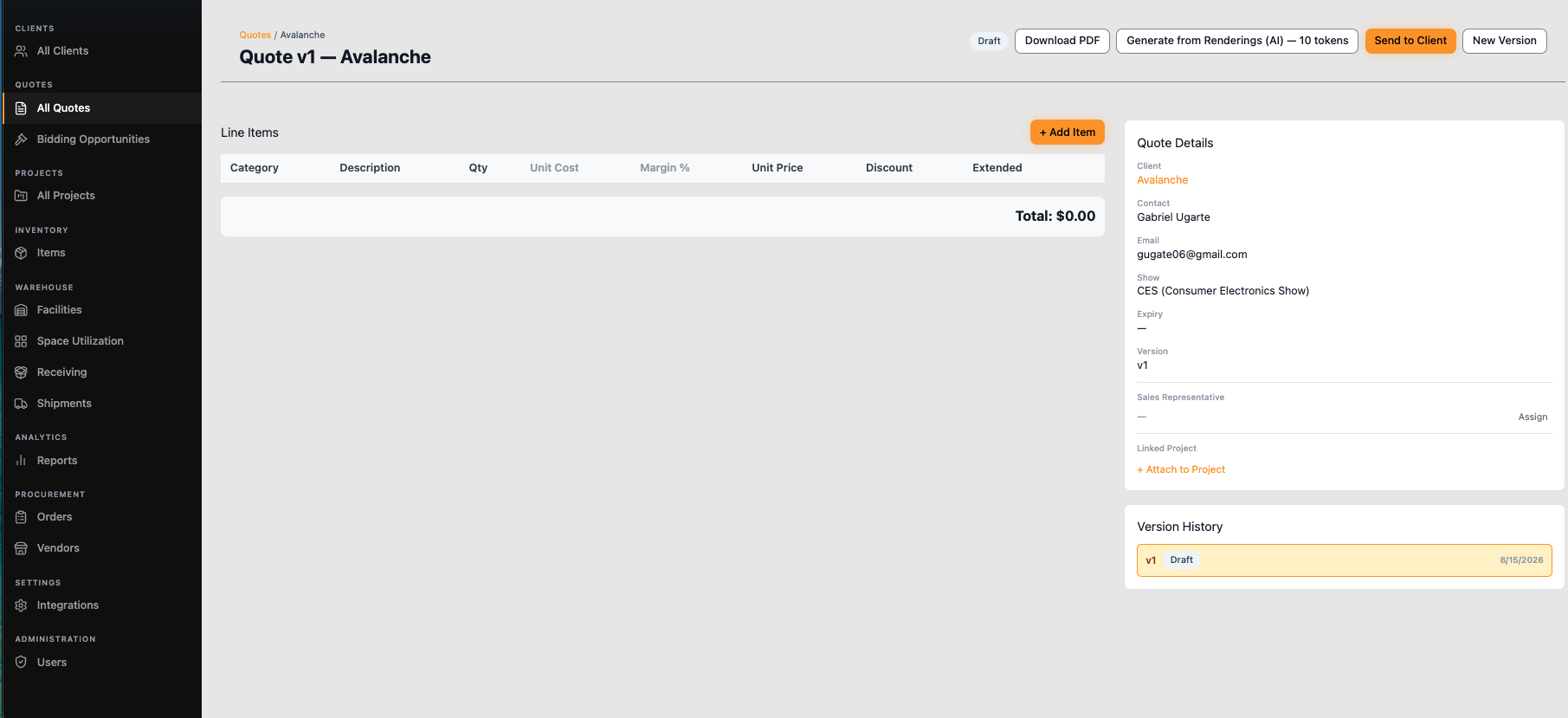
Once created, you land on the quote detail page. This shows the Line Items table (Category, Description, Qty, Unit Cost, Margin %, Unit Price, Discount, Extended) and the running Total on the left, with Quote Details (Client, Contact, Show, Expiry, Version, Sales Representative, Linked Project) on the right.
Click + Add Item to add a line item manually — whether you started from scratch or are refining an AI-generated quote. Fill in the Category, Description, Quantity, Unit, Unit Cost, and Margin % — ShowBase
automatically calculates the Unit Price and Extended total. You can also apply a Discount %, or link the line item to an existing Inventory Item.
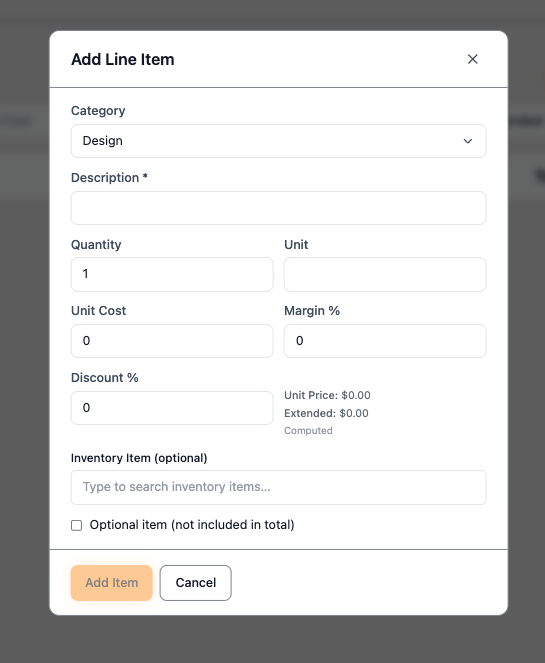
Check Optional item if you want to include something in the quote for visibility without it affecting the total (e.g., an add-on the client can choose separately).
Sending & Versioning a Quote
From the quote detail page, you have several actions available:
- Download PDF — export the quote as a shareable file
- Generate from Renderings (AI) — run the AI generation again if needed (also costs tokens)
- Send to Client — deliver the quote directly
- New Version — create a new version of the quote (useful when a client requests changes, without losing the original)
Every version is tracked under Version History, so you always have a record of what changed and when.
💡 Tip: Use + Attach to Project once a quote is approved, to link it directly to its corresponding project — this is also what enables automatic budget tracking mentioned in the Project Management article's Budget tab.
What the Client Sees (Send to Client)
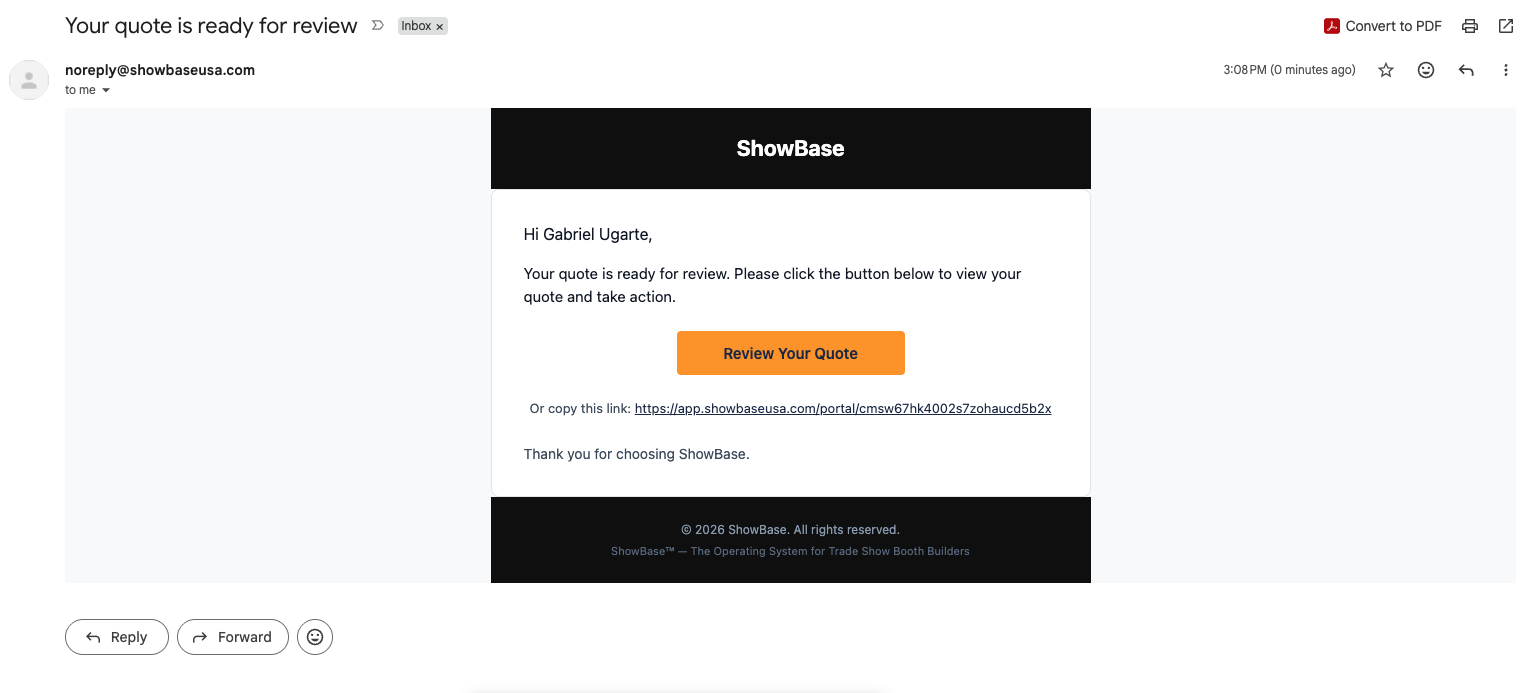
When you click Send to Client on a quote, ShowBase automatically emails the client from noreply@showbaseusa.com with the subject "Your quote is ready for review." The email includes a Review Your Quote button, plus a plain-text link as a backup in case the button doesn't work in their email client.
Clicking the button takes the client to the ShowBase Client Portal — a simplified, client-facing view of the project. From here they can see the quote total, expiration date, and full show details (Venue, Show
Start/End, Booth Size, Booth Number, Status, and their assigned Project Manager, Account Manager, and Sales Representative).
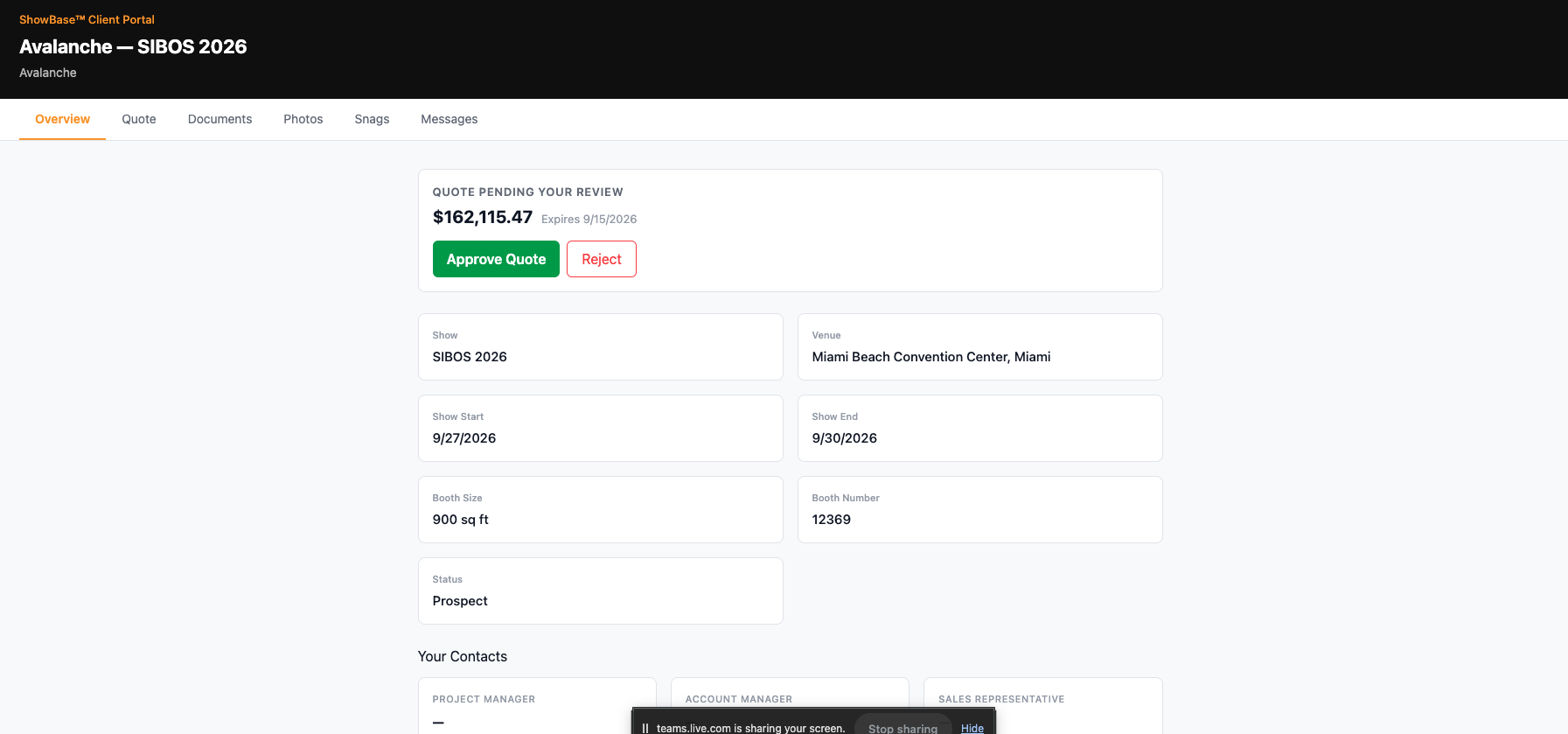
The client can Approve Quote or Reject it directly from this screen — no ShowBase account or login required on their end. Scrolling down, they also get early visibility into Project Milestones (Initial Build, Logistics, Show Services, Show Build, etc.) with their due dates and status — even before the project has officially kicked off.
💡 Tip: Since the Client Portal shows live project data (not a static snapshot), it's a good idea to double check your Milestones and project details are accurate and client-appropriate before sending the quote — the client is seeing the same real-time information your team sees.
⚠️ Note: The Client Portal has its own tabs — Overview, Quote, Documents, Photos, Snags, Messages — giving the client limited, read-only visibility into parts of the project. This is separate from Guest Crew access (covered in the Project Management article), which is for on-site team members rather than clients.